
Quick answer
What world settings can you change in RuneScape: Dragonwilds?
When you create a world you first choose how it is shared — Play solo, Play with friends, Play with community or a dedicated server — and then choose a mode. Standard is the default, and its basic settings and difficulty cannot be adjusted after the world is created. Creative removes the restrictions instead of tuning them. Custom exposes basic and advanced settings and can be changed while you play. World names are capped at 16 characters.
- An ordinary world holds up to four players; dedicated servers are a separate route with a higher ceiling.
- Hard difficulty changes five things: drains can kill, XP past your current level is lost on death, enemies hit 15% harder, only one gravestone stays active, and weaknesses and resistances both rise 10%.
- Friendly Fire is the world-level PvP switch, and it also appears among the Custom settings.
Jump to a section
Creating a world and choosing who can join
One screen decides visibility, player count and whether friends can shoot each other.
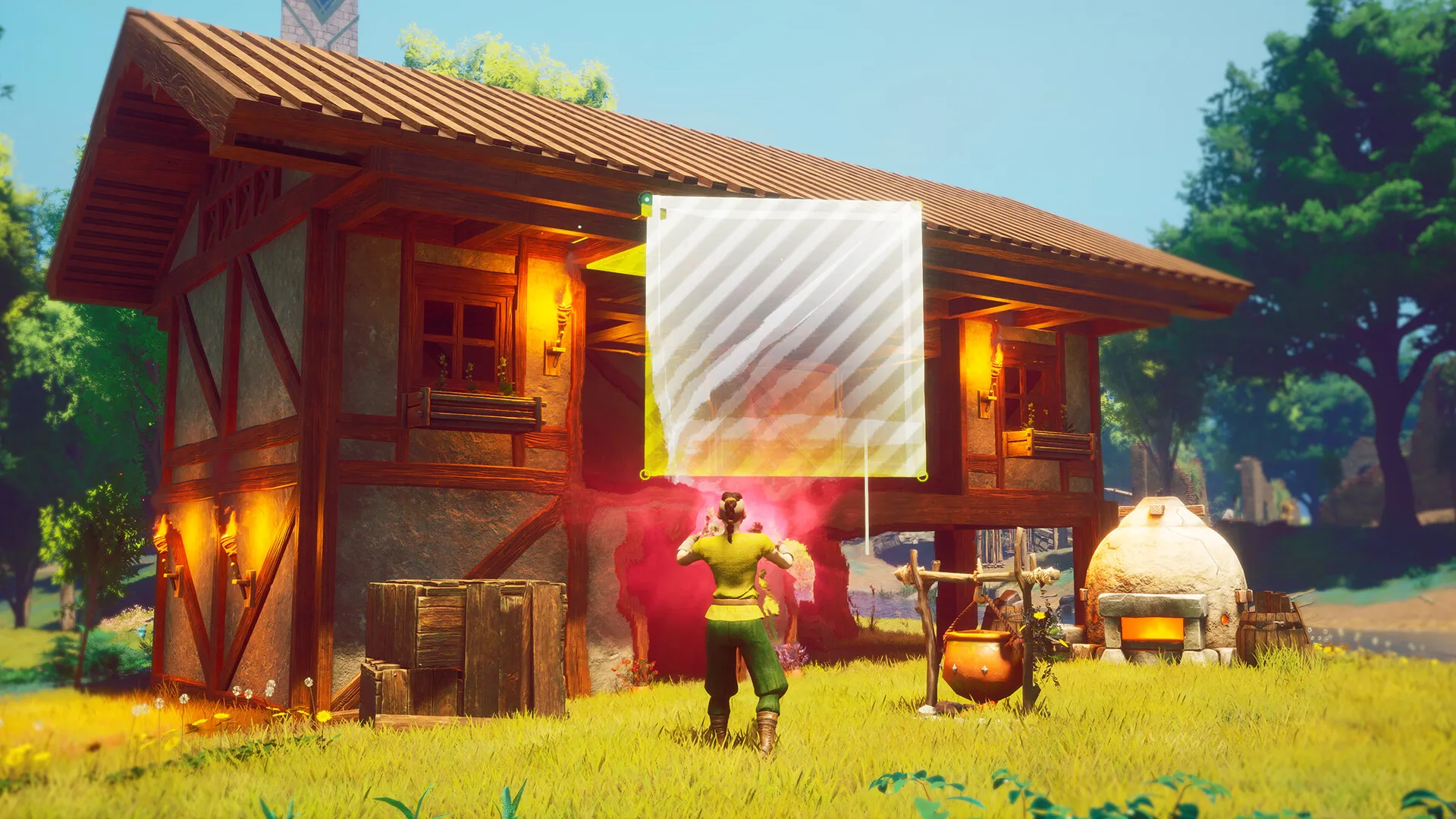
World creation begins with Create World on the play screen, which takes you to the Wise Old Man's temple to make the decisions the world keeps for its lifetime. The first of those is how the world is reached, not how hard it is.
| World type | Who can join | What that means in practice |
|---|---|---|
| Play solo | You — and friends if you open it later | A private world that can still be opened to friends while you carry on playing solo. |
| Play with friends | Your Steam friends list | Friends see the world name, your name, how many players are inside, the type, the PvP state and when it was last played. It never appears on the public list. |
| Play with community | Anyone browsing the public world list | The public entry shows the world name, who created it, players online, whether it is public or offline, PvP state and the last-played time. |
| Dedicated server | Anyone you hand the address and world name to | A separate Steam product with its own configuration and its own player ceiling. Public lists can include dedicated servers alongside player-hosted worlds. |
Choosing a type does not lock the audience on its own: whichever you pick, the world can still be limited to you, to your friends, or opened to the public. Friendly Fire is the switch that turns other players into valid targets, so the PvP decision is made here rather than in combat.
The name you type is capped at 16 characters, and the cap counts spaces and special characters such as -, ~, !, @ and _ even though those characters are stripped out. Keep the name short and alphanumeric if you plan to type it on a console or hand it to someone else, because it is the same name you will need when joining a hosted server.
A full world is full
Worlds hold four players. A friends-list entry does not reserve a place, and joining a world that is already full returns a world is full error rather than a queue.
Standard, Creative and Custom
The mode decides whether the settings screen is a one-time decision or a control panel.
| Mode | What it changes | Can you edit it later? |
|---|---|---|
| Standard (default) | Basic settings plus a Normal or Hard difficulty choice. Everything else plays by the standard rules. | No. The wiki is explicit that Standard basic settings and difficulty cannot be adjusted after the world is created. |
| Creative | Removes the restrictions rather than tuning them: the player is invincible, resources are unlimited, and the map is open to build and explore in. | Not described as tunable — it is the unrestricted mode, not a settings menu. |
| Custom | Basic settings plus the advanced settings list: survival scales, death rules, costs, unlocks, world events and per-creature scales. | Yes. Difficulty and settings can be set and changed while you are playing the world. |
Custom worlds are entered with a Custom World character. Creating one is part of the setup flow: the character is flagged as a custom-world character first, and the settings apply to the run from there.
The practical consequence is that Standard is a commitment. If you wanted a harder or softer world and picked Standard, the documented answer is a new world — Custom is the mode that lets a group change its mind on week three without losing the base everyone built.
Normal vs Hard: the five documented differences
Hard is not a global damage multiplier with a label on it; it changes death, XP and the gravestone system too.
| System | Normal | Hard |
|---|---|---|
| Hydration, sustenance and rest | Never reduces health below 1% | Drains faster and can reduce health to 0% |
| Skill XP | Retained on death | XP beyond the player's current level is lost on death |
| Enemy attacks | Standard damage | Deals 15% more damage to the player |
| Death mechanics | Multiple gravestones | Only one gravestone can be active; dying again can lose the oldest one |
| Weaknesses and resistances | Standard values | Both increased by 10% |
Transcribed from the wiki's comparison table. The Hard settings themselves arrived in Update 0.8.0 on 17 June 2025, before 1.0.
Two of those rows are easy to misread. The drain row is about health, not about hunger in the abstract: on Normal the survival meters flatten out at 1% health instead of finishing you, while on Hard the same neglect ends the run. The gravestone row decides how much a bad night costs — on Hard the oldest grave is the one that pays for a repeated death.
The Custom advanced settings, category by category
Five categories, one of which expands into ten separate creature families.
Custom settings are split into a basic group and an advanced group, and the advanced group is where the world stops being a difficulty preset and becomes a rule set. The categories are:
| Category | What it covers |
|---|---|
| Player | Health, stamina, lifeward, resistances and damage scales; drain rates and the kill switches for hunger and thirst; XP gain and death rules; inventory capacity and retention; gravestone count; spell cost, cooldown and teleport cost. |
| Crafting and processing | Crafting material cost, a full recipe unlock, and processing speed. |
| Building | Building material cost and a full building-piece unlock. |
| Environment | Friendly Fire and the frequency of major and minor world events. |
| AI families | Beast, Construct, Critter, Garou, Goblin, Mini-boss, Boss, Skeleton, Undead and Zamorak — each with its own damage, health and resistance scale. |
Most scales follow the same shape: 1.0x by default, adjustable from 0.5x to 3.0x in 0.1x steps. The exceptions are worth knowing before you start sliding numbers around, because they are where a group can accidentally make a world unplayable or trivial:
| Setting | Default | Range | Why it matters |
|---|---|---|---|
| Lifeward Scale | 1.0x | 1.0x – 3.0x | The one scale that cannot go below its default, so lifeward can only be increased. |
| Sustenance / Hydration / Endurance Drain Scale | 1.0x | 0.0x – 3.0x | Drops to zero, which removes the meter rather than merely slowing it. |
| Hunger Kills / Thirst Kills | No | No / Yes | Off by default. Drain alone does not kill until these are switched on — and on Hard the equivalent behaviour applies. |
| Retain Inventory on Death | No | No / Yes | Covers the inventory and worn slots together, so it is the single biggest change to death cost. |
| Reset Last Completed XP Level on Death | No | No / Yes | Drops XP earned since your last level rather than the level itself. |
| Max Number of Gravestones per Player | 10 | 0 – 20 | The only whole-number setting here; at 0 a death leaves nothing to recover. |
| XP Gain Scale | 1.0x | 0.5x – 3.0x | Sets the pace of the whole run, and it cannot be turned off entirely. |
| Spell Cost / Spell Cooldown Scale | 1.0x | 0.0x – 3.0x | Free and instant casting is available, independently of each other. |
| Inventory Carry Capacity Scale | 1.0x | 0.0x – 3.0x | Hauling for a build can be switched off entirely at 0.0x. |
| All Crafting Recipes Unlocked / All Building Pieces Unlocked | No | No / Yes | Bypass progression rather than speeding it up. |
| Major / Minor World Event Frequency Scale | 1.0x | 0.0x – 3.0x | Controls how often the world interrupts whatever the group is doing. |
| Invulnerable | No | No / Yes | Enemy attacks cannot land on the player at all. |
Defaults and ranges as listed in the wiki's Custom Mode tables. Every AI family uses the 0.5x – 3.0x damage, health and resistance scales with a 1.0x default.
Which settings actually change how a run plays
Half of the list is fine-tuning. These are the controls a group feels within an evening.
Death rules come first. Retain Inventory on Death, Reset Last Completed XP Level on Death and Max Number of Gravestones per Player decide what a wipe costs. Leaving them at their defaults gives a Standard-feeling world; moving all three in the same direction is what separates a forgiving group world from a punishing one.
Then the survival clocks. Sustenance, hydration and endurance each have their own drain scale, and hunger and thirst have separate kill switches. Slow drains with kills off is a world where food is a buff rather than a timer; fast drains with kills on is a survival game in the harsher sense of the term.
Then the grind. XP Gain Scale sets the pace on its own, while All Crafting Recipes Unlocked and All Building Pieces Unlocked skip it for two specific activities. A group that wants to build a large base and would rather not spend the week on it can unlock building pieces and lower the building material cost instead of changing anything about combat.
Then the pressure from the world itself. Major and minor world event frequency has its own pair of scales, which is the lever that matters if the group wants a quiet build week or a map that keeps interrupting. And because every creature family has separate damage, health and resistance scales, the difficulty can be raised for one family — undead, or bosses — without touching the rest of the bestiary.
| If you want | Move these |
|---|---|
| A relaxed building world | Building Material Cost Scale down, All Building Pieces Unlocked on, event frequency at 0.0x, Hunger and Thirst Kills off |
| Survival rules that still end runs | Drain scales up, Hunger Kills and Thirst Kills on, Retain Inventory on Death off |
| A punishing group run | Player Damage Scale down, AI damage and health scales up, gravestones low, XP Gain Scale at 0.5x |
| A testing or filming world | Invulnerable on, Spell Cost and Cooldown at 0.0x, All Crafting Recipes Unlocked on |
| A PvE-only co-op world | Friendly Fire off, which is the same switch the world list reports as the PvP state |
These are combinations of documented controls rather than tested presets — the page has not been played through on each configuration, and balance still shifts with patches.
Moving a custom world onto a dedicated server
The world is a save file, so the settings travel with it.
Create the world in game first
Pick the world type, choose Custom, name it within the 16-character limit, then set the values you want on the Advanced tab before confirming.
Enter the world once with a custom-world character
The save needs to exist before it can be uploaded.
Take the save file
The worlds live in
%userprofile%\AppData\Local\RSDragonwilds\Saved\SaveGames— copy the.savyou want to move.Stop the hosted server, then upload
In the host's file manager, open
RSDragonwilds\Saved\SaveGamesand drop the.savin. Uploading over a running server is how saves get overwritten rather than replaced.Rename the server to match the world
On the host's startup settings, the server name has to be exactly the world name you typed at creation. Start the server afterwards and the custom rules come up with the world.
The order matters more than the individual clicks: stop, upload, rename, start. The flow above follows a host-published walkthrough of BisectHosting's panel, so the labels on your own host may differ even though the file paths are the game's rather than the host's.
Server-side configuration values are a separate layer of settings that sit alongside the world's own rules — those are covered on the dedicated server guide.
When each group of settings arrived
Useful if you are reading a guide that assumes an older build, or returning to a world created in Early Access.
| Update | Date | What it added |
|---|---|---|
| 0.8.0 | 17 June 2025 | Hard mode settings entered the game. |
| 0.9 | 2025 | Custom worlds, with basic and advanced settings and custom-world characters. |
| 0.10 | 15 December 2025 | Undead and skeleton settings added to the Custom menu. |
| 0.11 | 31 March 2026 | Zamorak monster settings added to the Custom menu. |
Dated entries come from the wiki's update-history blocks. The 0.9 entry is not dated on the pages read here, so only its version is stated.
The pattern in that table is the reason a creature-family settings list keeps growing: new enemy groups arrive with their own scales rather than inheriting an older family's values. A world created before 0.10 will not have the undead and skeleton rows to set until the game writes them in.
Sources
What this page was checked against.
- RuneScape: Dragonwilds Wiki — Worlds
- RuneScape: Dragonwilds Wiki — Custom Mode
- How to create a custom world on a RuneScape: Dragonwilds server (BisectHosting walkthrough)
How this page was verified
The settings, defaults, ranges and difficulty comparison were transcribed from the wiki articles on Worlds and Custom Mode, both read on 16 September 2026, and cross-checked against the 0.8.0 to 0.11 update history. No world was created for this page, so the descriptions reflect published documentation rather than a fresh in-game pass over the 1.0 settings menu.
Still open
- The wiki lists Friendly Fire inside its environment block and repeats it near the creature scales; how the 1.0 menu groups it was not verified in game, so it is described here as the world-level PvP switch.
- Creative worlds are documented by what they remove rather than by a settings list, so whether they expose the same advanced menu as Custom is left open.
- How much of the Custom settings list is exposed through a dedicated server's config files, rather than only through the in-game menu, is not documented in the sources read here.
- The 0.9 update is not dated on the pages read here, so the Custom mode entry is listed by version only.