
Quick answer
How do you set up a RuneScape: Dragonwilds dedicated server?
Install the free RuneScape: Dragonwilds - Dedicated Servers product on Steam (app 4019830), by adding it through Steam or with steamcmd +force_install_dir <folder> +login anonymous +app_update 4019830 +quit. Run it on a 64-bit Windows or Linux machine with 2 GB of RAM plus 1 GB per player — about 8 GB for the current six-player ceiling — and make UDP port 7777 reachable from the internet. Fill in Owner ID, Server Name, Default World Name and Admin Password in DedicatedServer.ini before the first start.
- Hosting choices are Shockbyte (the official partner), a computer you own at home, or a cloud machine you configure yourself.
- Server and client must be on the same build; a version mismatch is the usual cause of a server that has gone missing.
- Editing config values while the server is running discards those edits, so stop the server first.
Jump to a section
What a dedicated server actually changes
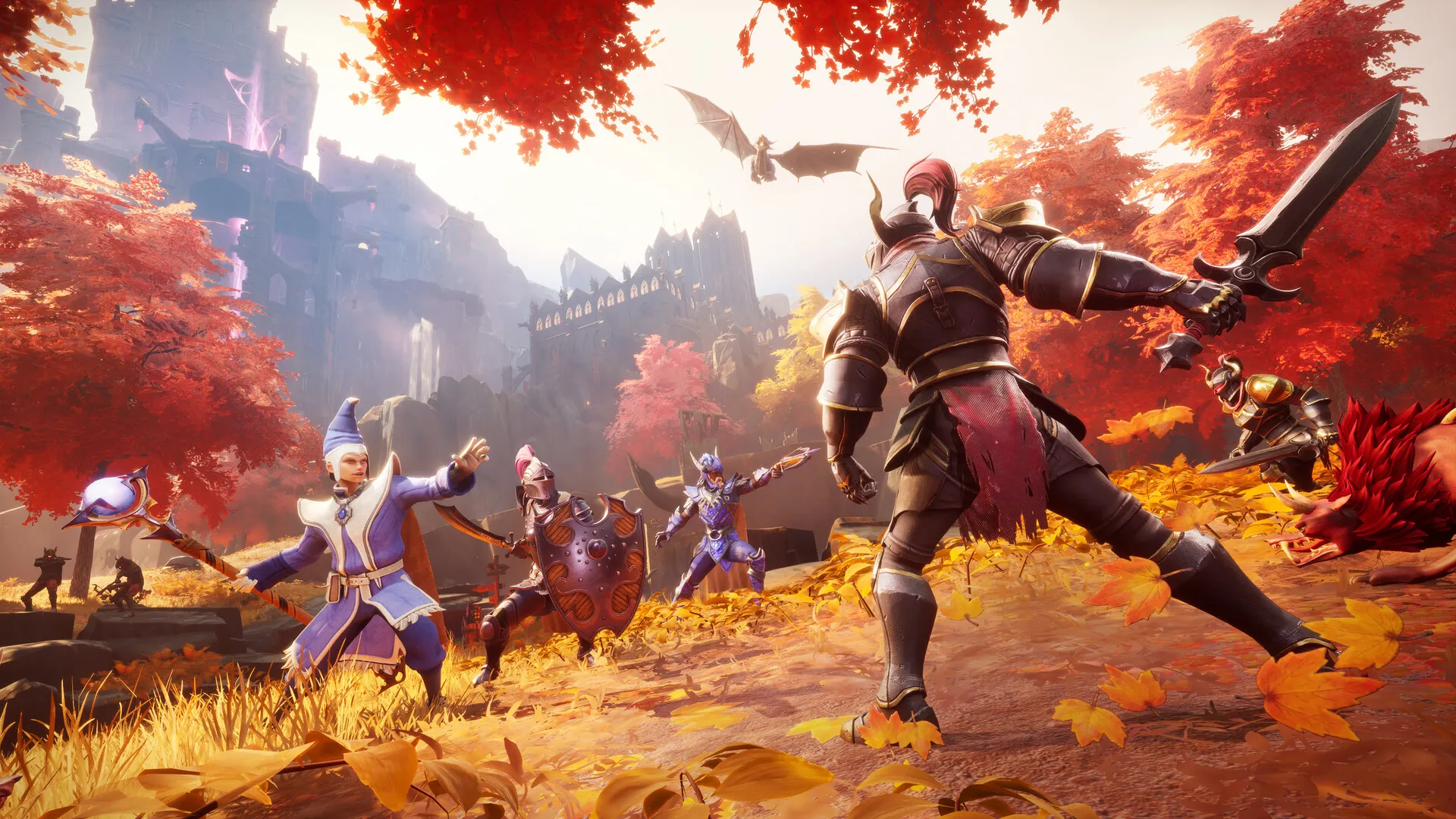
Jagex describes dedicated servers as persistent game instances of RuneScape: Dragonwilds, hosted independently of a player's own game client. In practice that means the world is owned by a machine rather than by whoever invited everyone in: the world stays up when the host closes the game, and joining does not depend on one player being online.
It also moves the responsibility onto you. Uptime, backups, ports and updates become your job instead of the game client's, which is why the official documentation splits the decision into three hosting routes with very different effort levels.
Scope of this page
This page covers the dedicated server product itself. Ordinary hosted co-op worlds, invites and the standard world settings are separate topics, and the limits differ — the dedicated server ceiling below is not the co-op world limit.
Choosing where the server runs
The same server binary, three levels of effort.
The official how-to guide lays the decision out as simplicity against responsibility. Shockbyte trades money for managed updates; self-hosting trades your time and hardware for control.
| Route | Difficulty | Cost | Who handles updates |
|---|---|---|---|
| Shockbyte (official partner) | Easiest | A set rental price | Handled — servers restart onto the new build automatically |
| At home on your own computer | Hard | Electricity only | Manual — you install and back up yourself |
| Cloud machine you configure | Hardest | Depends on machine capacity | Manual, and your own provider setup |
Ratings as published by Jagex. Cloud documentation was still being prepared at the time of the official article, so treat cloud hosting as the least documented of the three.
For Shockbyte, the flow is short: rent a server from their site, open the config page, choose RuneScape: Dragonwilds Settings, optionally point it at a world from your personal library, then note the world name down and start it. The community wiki lists three self-managed tiers, from a two-player tier through four players up to the six-player tier, with prices quoted in USD per month and discounted for quarterly and annual billing — check Shockbyte directly for the current figures, since partner pricing is theirs to change.
Machine requirements and port forwarding
Two constraints decide whether your hardware can host at all.
- Operating system
- 64-bit only. Windows and Linux are both supported.
- Memory
- 2 GB + 1 GB per player. Two players need about 4 GB; the full six-player server needs about 8 GB.
- Player ceiling
- Up to 6 players as of Update 0.11 (March 2026), up from the four-player cap older guides still quote.
- Ports
- UDP 7777 by default; a second server on the same machine moves to 7778, and so on.
A home server is reachable only if the ports are actually forwarded. That means the firewall on the host machine, every router between it and your internet provider, and the ISP itself. Some providers hand you the tools, some require a support request, and some block forwarding outright — a common enough situation that Jagex links out to portforward.com rather than restating the process.
The symptom to watch for is specific: if other players can see your server in the list but cannot join it, port forwarding is the likely failure, not the server configuration.
On Linux you can move the port
Passing -port=1234 into RSDragonwildsServer.sh changes the port the server listens on. On Windows the documented approach is to leave the defaults and forward 7777.
Installing and configuring the server
- Acquire the free RuneScape: Dragonwilds - Dedicated Servers product on Steam, or on a headless machine use
steamcmd +force_install_dir C:\MyInstallFolder +login anonymous +app_update 4019830 +quit. - Run it through Steam, or launch
RSDragonwilds.exefrom the dedicated server product folder — the server binaries are not distributed separately from the game. - Add the launch options
-log -NewConsolein the product's Steam properties so the server reports what it is doing in a console window instead of running blind. - Create the config file and fill in the mandatory values before starting the server for the first time.
Config files live in two places depending on platform: Linux reads Files > RSDragonwilds > Saved > Config > Linux > DedicatedServer.ini, while Windows expects the same values copied across into Files > RSDragonwilds > Saved > Config > WindowsServer > DedicatedServer.ini.
| Value | Required? | What it does |
|---|---|---|
| Owner ID | Mandatory | Your RuneScape: Dragonwilds Player ID, shown at the bottom of the in-game Settings menu. The server will not start without it. |
| Server Name | Mandatory | The name of the server, whatever world it happens to run. |
| Default World Name | Mandatory | Names the default world the server creates on first startup. |
| Admin password | Mandatory | Grants the Server Management tab under Pause Menu > Settings to anyone who enters it. Admins stay admins until the password is changed again. |
| World password | Optional | Overrides any password stored in the world itself. Leave it empty to let anyone join. |
Do not edit config while the server is up
Both the official guide and the wiki state plainly that changes made to DedicatedServer.ini while the server is running are lost. Stop the server, edit, then start it again.
Finding the server and getting everyone in
Open the Worlds screen
The server is discovered from the Public tab, not from a friends list or an invite.
Search the exact world name
The search is case sensitive, so "dragonwilds world1" will not match "Dragonwilds_World1".
Give it a few seconds
The server should appear in the results. Search by the world name, not by the server name, and not by the file name with the .sav suffix attached.
If it does not appear, the official checklist runs in this order: confirm server and clients are on the latest version (Shockbyte servers just need a restart to update), confirm the world name you typed is the world the server is actually running, confirm every mandatory config value is set, then read the log.
Known issue: Steam invites
Inviting a player to a dedicated server through Steam Invites does not currently connect as intended. Sharing the world name and having players search for it is the working route.
Moving an existing world onto the server
The same procedure covers a world you already play and a brand new one with custom settings.
On startup a dedicated server loads the newest .sav file it finds in RSDragonwilds/Saved/Savegames. If that folder is empty, it creates a default Standard world using the default config values — which is why importing your own save is a matter of putting exactly one file in the right place.
Stop the server
Never swap saves while it is running.
Back up everything already in Savegames
Copy the existing contents somewhere safe — the server drive, your own machine or cloud storage.
Empty the folder
Clear the contents of
RSDragonwilds/Saved/Savegameson the server. Do not delete the folder itself.Copy your local world across
Take the
.savfromC:\Users\<you>\AppData\Local\RSDragonwilds\Saved\SaveGamesand place it inRSDragonwilds/Saved/Savegameson the server drive.Start the server
It loads that save as the live world.
Do not rename the save file
The wiki is unusually direct about this: keep the original file name. A world started from a renamed file will not save progress, and buildings and objects will not survive a restart. If you already renamed it, rename it back or copy the original again, then confirm progress persists by leaving and rejoining.
To build a world with custom rules on the server, create it locally first with the settings you want (Standard, Custom, Creative), enter it once and let the surroundings load — the wiki suggests a minute or two — then exit, back up, copy the save over and start the server. Custom settings cannot be chosen from the server itself, only inherited from the world file you load.
Backups are a copy job rather than a menu option: take the files from RSDragonwilds/Saved/Savegames, store them elsewhere, and rename the copies so you can tell them apart. The wiki treats a backup as mandatory before updating a server build.
Who can do what, and where the logs are
| Role | How you get it | Powers |
|---|---|---|
| Owner | The Player ID matching Owner ID in the config | Can ban and unban anyone, online or offline. |
| Admin | Entering the admin password on the Server Management page | Can ban regular users who are online. Cannot unban. |
| Regular user | Having the world name | Can play. Cannot ban anyone, including admins and the owner. |
Server logs sit at .../RSDragonwilds/Saved/Logs/RSDragonwilds.log, and the wiki points at %userprofile%\AppData\Local\RSDragonwilds\Saved\Logs as well. These logs carry the running version at the top, which is the first thing to check after an update, and out-of-memory errors, which usually mean a home host is short on RAM for the number of players connected.
For problems that logs and port forwarding do not explain, the wiki suggests sending logs to ModMail on the official RuneScape: Dragonwilds Discord server.
Sources
What this page was checked against.
- RuneScape: Dragonwilds — Dedicated Servers: A How-To Guide (Jagex, 30 March 2026)
- RuneScape: Dragonwilds Wiki — Dedicated Servers
- Steam — RuneScape: Dragonwilds - Dedicated Servers (app 4019830)
- RuneScape Dragonwilds Server Hosting — Full Setup Guide (video walkthrough)
- Dedicated server setup with SteamCMD on Windows (video walkthrough)
How this page was verified
Every value on this page was checked against the official Jagex how-to guide dated 30 March 2026, the community wiki article, and two independent setup walkthroughs, all read on 16 September 2026. No server was deployed while writing this page, so the steps reflect published documentation rather than a fresh install test.
Still open
- Shockbyte pricing is theirs to change; only the tier structure is described here, and the current figures should be read from Shockbyte directly.
- Cloud hosting documentation was still being written at the time of the official article, so provider-specific cloud steps are not covered.
- How console clients join dedicated servers is not spelled out in the official documentation reviewed for this page.